Digital Accessibility
Create Digital Accessible Content
Introduction
Digital accessibility ensures that all users, including those with disabilities, can access and use digital content effectively. This document provides professional instructions to help organizations create accessible digital environments.
When creating PDFs, and images it is important to ensure they are fully accessible. All images must include accurate and descriptive alternative text so that users who rely on screen readers can understand the content. If text is presented as an image without proper alternative text, it will not be accessible to individuals with visual impairments. Additionally, PDFs should be properly structured with tags, headings, and landmarks to support navigation. Without this structure, users who rely on keyboard navigation or assistive technologies may have difficulty accessing and moving through the document.
Key Principles
-
-
-
Perceivable: Information must be presented in ways that all users can perceive. Use alternative text for images, captions for videos, and ensure text contrast meets accessibility standards.
-
Operable: User interface components must be operable by all users. Ensure that all functionality is available via keyboard, and provide sufficient time for users to read and use content.
-
Understandable: Information and operation of the user interface must be understandable. Use clear language, provide consistent navigation, and ensure that all content is predictable.
-
Robust: Content must be robust enough to work across various devices and assistive technologies. Follow coding standards and validate your HTML/CSS for compatibility.
-
-
Content Accessibility Checklist
-
-
-
Use Structured Content: Organize content with headings, lists, and table headers for better navigation.
-
Create Meaningful Links: Write descriptive links that make sense out of context; avoid phrases like "click here."
-
Provide Contextual Alternative Text: Use meaningful alternative text that accurately describes the content of images.
-
Avoid Images of Text: Minimize the use of text within images to enhance readability.
-
Ensure High Contrast: Use high-contrast colors for text and backgrounds; verify color contrast using eyedropper tools.
-
Avoid Sole Reliance on Color: Do not use color alone (e.g., "in green") or single sensory characteristics (e.g., "on the left") to convey important information.
-
Include Captions and Transcripts: Provide captions for videos and transcripts for audio content to ensure accessibility.
-
Tag Language Changes: Clearly tag any switches in language within the content.
-
Limit Use of PDF Documents: Avoid using PDFs as primary content. If necessary, offer them as optional downloads labeled for printing.
-
-
Best Practices
1. Text Alternatives
-
-
- Images: Provide descriptive alt text for all images.
- Multimedia: Include captions and transcripts for audio and video content.
-
2. Navigation
-
-
- Keyboard Accessibility: Ensure that all site functions are accessible via keyboard shortcuts.
- Logical Structure: Use headings (H1, H2, etc.) to create a clear content hierarchy.
-
3. Color Contrast
-
- Ensure that text contrasts sufficiently with background colors. Aim for a contrast
ratio of at least 4.5:1 for normal text and 3:1 for large text.
Text Contrast refers to the difference in color between text and its background. High contrast (like black text on a white background) makes text easier to read, while low contrast (like gray text on a light gray background) can make it hard to see. - Good text contrast is essential for accessibility, helping everyone, especially those with visual impairments, to read content comfortably.
- Ensure that text contrasts sufficiently with background colors. Aim for a contrast
ratio of at least 4.5:1 for normal text and 3:1 for large text.
4. Forms
-
-
- Label all form fields clearly, and use instructions for complex inputs.
- Ensure error messages are descriptive and help users correct issues.
-
5. Testing
-
-
- Automated Testing Tools: Use tools like WAVE to identify accessibility issues.
- User Testing: Include users with disabilities in testing phases to gather real-world feedback.
-
Challenges with Images of Text
Mobile users encounter difficulties with text images, as these do not reflow, causing the browser to simply reduce their size.
Users with low vision also face challenges; JPG and PNG text images cannot be scaled without losing clarity, resulting in blurry content.
Additionally, screen reader users struggle with text in images because all the text must be included in the alternative text. This results in a single, continuous sentence, where line breaks, headings, and lists are not preserved. If any words are missed, users must start over to read the entire content again.
Best Practices
-
-
-
Use Real Text: Ensure that all essential content is actual text, styled with CSS for visual design.
-
Provide Alternative Text: If images of text are necessary (e.g., logos), always include descriptive alternative text.
-
Optimize Image Quality: Upload vector images (SVG) or high-resolution images to maintain clarity when enlarged. For instance, use a 1000px wide image for a placement requiring a 500px width.
-
Supplement Longer Text: If the text in the image exceeds a sentence, replicate its content on the page as regular text. For example, summarize key points from a chart in its caption or provide event details alongside an image of a printed poster.
-
-
How to Manage PDF Documents
-
-
Assess the Need for PDF Format:
Consider whether the content truly needs to be in PDF format. In most cases, the answer will be "No." PDFs are primarily intended for printing, not for online viewing and interaction. They are typically required only for regulatory documents that must replicate the physical version. -
Recognize User Experience Challenges:
While some users prefer PDFs for their fixed design and resistance to editing, they can create significant accessibility issues for others. -
Challenges for Screen Reader Users:
Without proper structure tags, screen reader users may encounter jumbled fragments of columns and tables, making it difficult to locate headings and navigate the document. -
Accessibility Issues with PDF Forms:
If field labels, reading order, and tab order are not properly set, keyboard and screen reader users may find it difficult or impossible to complete PDF forms. -
Difficulties for Mobile and Magnifier Users:
Users on mobile devices or those using screen magnifiers often struggle to read long lines or follow columns, requiring excessive scrolling and zooming.
-
The PDF-on-a-Phone
The "PDF-on-a-Phone" problem refers to the challenges users face when trying to view and interact with PDF documents on mobile devices. Here are the key issues:
-
- Poor Responsiveness: PDFs are typically designed for desktop viewing, resulting in a fixed layout that doesn’t adapt well to smaller screens. This can make content difficult to read without zooming in and scrolling.
- Navigation Difficulties: Navigating through a PDF on a phone can be cumbersome. Users often need to scroll horizontally and vertically to find information, which can be frustrating and time-consuming.
- Accessibility Barriers: Many PDFs lack the accessibility features necessary for users with disabilities. Screen readers may struggle to interpret the content, and forms may not function properly on mobile devices.
- Limited Interactivity: Interacting with elements like forms or buttons in a PDF can be challenging on mobile devices, as these features may not work as intended or may be hard to access.
Alternatives to PDFs
Amend PDFs for compatibility with assistive devices can be challenging, time-consuming, and costly. Here are three preferred alternatives to minimize these expenses, listed in descending order of preference:
-
-
PDF: Convert the content into web pages
-
Offer PDF as a Printable Download: Provide the PDF solely as a downloadable option alongside a web page.
-
Provide an Accessible Alternative: Offer a web page as an accessible alternative to the PDF. Ensure that the accessible version is equivalent in content, meeting ADA requirements by including reproductions or text equivalents for images, charts, and graphs.
-
If you must provide the content exclusively as a PDF:
-
- Follow the content accessibility checklist when creating the document.
- Portable Document Format (PDF) Section 508
When working with PDFs:
Open the file in Adobe Acrobat.
Go to Tools > Accessibility > Accessibility Checker.
Run the Accessibility Checker and resolve all identified issues.
If issues cannot be fully corrected within the PDF:
Obtain the original Word document, if available; or
Export the PDF to a Word document.
In Word, select Review > Check Accessibility and correct all issues before re-exporting the file as a PDF
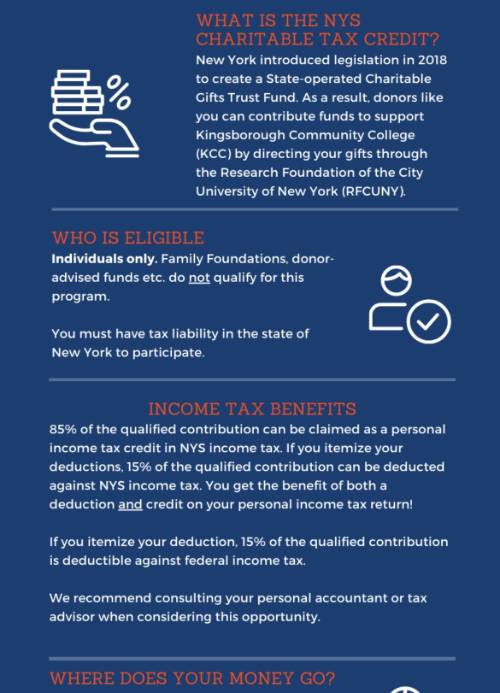
PDF Zoom In view on Mobile Devices